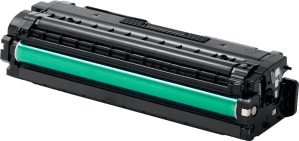

We are a one stop solution for all your printing requirements. We specialize in compatible toners and cartridges, as well as providing printer management solutions.


A dark stripe across an invoice or a cartridge error during a busy morning can stop an otherwise reliable printer. The useful question is what changed: the consumable, the paper, the settings or the machine itself?
Toner cartridge problems are easier to resolve when you test one possible cause at a time. Start with the checks below, following your model’s instructions whenever you handle internal components.
Print a report directly from the printer’s control panel, then compare it with a document sent from your computer. A clean internal report suggests that the file, application or driver deserves attention.
If both outputs show the same defect, investigate the supplies, paper and printing mechanism. Change one setting before retesting.
Check whether toner saving or draft mode is enabled. Select normal quality, use fresh paper recommended for the printer and check the supplies status.
If the cartridge was recently installed, confirm that its transport seal has been removed where applicable. Reseat it according to the manual. Redistribute toner only if the manufacturer recommends that procedure.
Continued fading can require cartridge or drum assessment. Increasing density indefinitely may hide the symptom without resolving its cause.
Vertical streaks and repeating marks can come from contaminated imaging components, a damaged cartridge or drum, or a fuser problem. Ghosting describes a faint repetition of an earlier image further down the sheet.
Run the model’s recommended cleaning routine. Clean a corona wire only on designs that provide an approved procedure, returning its slider to the correct position afterwards.
Persistent marks need diagnosis against the model’s defect patterns. Avoid rubbing exposed drum surfaces or dismantling assemblies to investigate.
Loose print can indicate that toner is not bonding properly to the paper. Check that the selected media type matches the actual sheet, particularly when using envelopes, labels or heavier stock.
Try supported plain paper and any manufacturer recommended toner fixing setting. If normal paper still smears, stop the job and request technical assessment.
The fuser uses heat to bond toner. Let the printer cool before accessing permitted areas, and leave fuser repairs to a technician.
Check the exact cartridge number against the device model. Remove shipping materials, reinstall the cartridge correctly and close the access cover securely.
An unsupported product, incompatible chip or poor seating can prevent recognition. Record the displayed message and ask the supplier to confirm compatibility before changing firmware or attempting resets.
Express Computers’ toner supply options provide a starting point for discussing a confirmed replacement specification when the installed product is unsuitable.
Print the device’s colour diagnostic page, where available. Check whether a particular colour is absent or weak, then inspect that cartridge’s status and installation.
Confirm that greyscale printing is disabled when colour is required. Run the documented calibration process once and compare another diagnostic page.
If the same colour remains affected, the cartridge or its imaging path may require inspection. Screen appearance alone is not a dependable diagnosis because display settings also affect perceived colour.
Pause printing when you find substantial loose toner. Follow the manual’s removal procedure and place a leaking cartridge on a protected surface without shaking it.
Avoid compressed air and household vacuum cleaners, which are unsuitable for toner cleanup. Request approved cleaning guidance or professional assistance, especially when powder has spread inside the machine.
Keep paper dry, retain cartridges in protective packaging until needed and record which device uses each supply. Assign approved settings for everyday documents so staff do not repeatedly change media profiles.
For recurring issues across several machines, managed print services can support a discussion about device performance and consumables management. Describe the pattern before proposing a fleetwide cartridge change.
The scanner glass or document feeder glass strip may be dirty. Compare a flatbed copy with a feeder copy, then clean the relevant surface using the manufacturer’s instructions.
An offline status usually requires checking power, connectivity and the print queue. Read any device error separately before concluding that toner caused the communication problem.
Different paper, moisture exposure or tray media settings may explain it. Test matching supported paper and settings before replacing a cartridge shared by every tray.
Retain the cartridge packaging, batch details, invoice, error photographs and sample pages. Note when the fault began and which checks changed the result.
No. Cleaning cannot repair damaged components. Repeated cycles may consume supplies without improvement. Escalate persistent defects after completing the manufacturer’s recommended checks.
Contact Express Computers with your printer model, cartridge code and test results. Clear evidence helps the team discuss suitable supplies and the next support step.