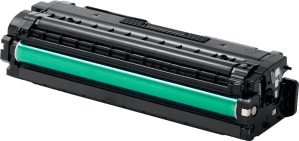

We are a one stop solution for all your printing requirements. We specialize in compatible toners and cartridges, as well as providing printer management solutions.


Printer ink problems can interrupt everyday business operations and lead to poor-quality documents, wasted paper and repeated printing attempts. A printer may suddenly produce faded pages, missing colours, streaks or cartridge-related error messages even when a cartridge has recently been installed.
Not every printing problem means the cartridge needs to be replaced. Issues can sometimes result from incorrect installation, blocked print heads, incompatible cartridges, unsuitable printer settings or ink that has not been stored correctly.
Understanding the likely cause helps businesses troubleshoot the problem before replacing equipment or repeatedly installing new cartridges.
Businesses looking for suitable replacement ink can explore Printer Ink Suppliers in the UAE after confirming the exact printer model and cartridge requirements.
Common printer ink problems include faded printing, missing colours, streaks, smudged pages, cartridge recognition errors and printers showing low-ink warnings after a replacement.
Start by confirming that the cartridge is compatible and correctly installed. Then check ink levels, printer settings and maintenance options such as print-head cleaning or alignment. If the problem continues, inspect the cartridge and printer for a more specific fault.
Faded output is one of the most common ink-related problems.
Text may appear grey instead of black, while images and coloured sections may look noticeably lighter than expected.
The first step is to check whether the cartridge is running low. A cartridge approaching the end of its usable ink supply may produce increasingly weak output.
If sufficient ink remains, check the printer's print-quality settings. Draft or economy modes can intentionally use less ink and may produce lighter output than normal-quality settings.
For inkjet printers, blocked or partially blocked print-head nozzles can also contribute to faded printing.
If the printer has a print-head cleaning function, running the manufacturer's maintenance procedure may help restore normal output. Avoid repeating cleaning cycles unnecessarily, as they can consume ink.
If fading continues, confirm that the cartridge is suitable for the device.
Our guide on How to Choose the Right Printer Ink for Your Printer explains how to verify cartridge compatibility before ordering replacements.
A document may sometimes print with one or more colours missing completely.
For example, an image that should contain blue may appear incorrectly because cyan ink is not being produced properly.
Start by checking the ink levels for each colour.
Printers that use individual colour cartridges may continue to operate even when one cartridge is empty or nearly empty. In other systems, the printer may use a combined colour cartridge.
If your printer has the option, print a nozzle-check or test page, provided there is sufficient ink remaining. This can help identify if a particular colour channel is not printing correctly.
A print-head cleaning cycle may resolve minor blockage issues.
Also confirm that the correct colour cartridge is installed in the correct position, especially after several cartridges have been replaced.
Horizontal lines, missing sections or inconsistent bands across a document can make otherwise readable printing look unprofessional.
These problems can arise when ink is not being distributed consistently across the page.
For inkjet printers, possible causes include partially blocked print-head nozzles or alignment problems.
Begin by using the printer's built-in maintenance functions. A nozzle check can help identify missing sections, while print-head cleaning may improve ink flow where appropriate.
If straight lines or text appear slightly offset rather than simply faded, print-head alignment may also need attention.
The exact maintenance process varies between printer models, so follow the procedure recommended for the particular device.
If problems began immediately after installing a new cartridge, also verify that all protective material was removed and the cartridge was seated correctly.
A printer may sometimes display a message indicating that the installed cartridge cannot be recognised.
This can occur for several reasons.
The cartridge may not be compatible with the printer model, may not be fully installed, or may not be making the expected connection with the printer.
Turn the printer off according to the manufacturer's procedure, remove the cartridge if appropriate and check that it has been installed correctly.
Confirm the cartridge reference against the exact printer model rather than relying only on the printer brand.
For businesses ordering replacement supplies online, the Complete Guide to Buying Printer Ink Online in the UAE explains how to verify printer and cartridge information before purchasing.
If a compatible cartridge is being used, confirm that it is specifically intended for that printer rather than assuming that all third-party cartridges fit every model.
Another frustrating situation occurs when the printer continues displaying a low-ink warning after a replacement cartridge has been fitted.
First confirm that the new cartridge has been installed properly and that the printer recognises it.
Restarting the printer according to the normal manufacturer procedure may allow the device to update its cartridge status.
If the cartridge is compatible rather than manufacturer-branded, ink-level reporting may depend on the cartridge and printer combination. The important point is to determine whether the printer can actually use the cartridge and produce normal output.
Do not repeatedly remove and reinstall the cartridge unless the manufacturer's troubleshooting instructions recommend doing so.
If the warning continues alongside printing errors, compatibility should be checked again.
Smudging occurs when ink does not appear to settle properly on the printed page.
The cause may not always be the cartridge itself.
The type of paper you use matters because different papers absorb ink differently. Printer settings should also match the media being used where the device provides those options.
If the printer is applying an unsuitable amount of ink for the selected paper or quality setting, output may take longer to dry or appear overly saturated.
Check that:
If smudging repeatedly occurs across different documents and appropriate paper, inspect the printer according to the manufacturer's maintenance guidance.
A newly installed cartridge does not always produce perfect output immediately.
If print quality suddenly declines after replacing the ink, first confirm the cartridge model and installation.
Protective seals or packaging components that should have been removed before installation can interfere with normal operation.
Check that the cartridge is properly seated and recognised by the printer.
If installation appears correct, run the printer's test or maintenance function to determine whether ink is flowing as expected.
Product quality can also vary, particularly among third-party cartridges. Businesses using alternatives to manufacturer-branded products should select cartridges from reliable sources and confirm that they are intended for the exact printer model.
For further guidance on cartridge selection, read Genuine vs Compatible Printer Ink: Which One Should You Choose?.
A printer producing completely blank pages can be particularly confusing because the print job appears to complete normally.
Possible causes include an empty cartridge, incorrect cartridge installation or a problem preventing ink from reaching the paper.
First check whether the cartridges contain sufficient ink and are recognised by the printer.
If a cartridge was installed recently, verify that all required protective material has been removed.
A nozzle check can help determine whether the print head of inkjet devices is producing any ink.
If repeated maintenance procedures do not improve the situation, avoid running unnecessary cleaning cycles. The printer or cartridge may require further inspection.
Printers that remain unused for extended periods may experience ink-related problems when they are used again.
Inkjet printers in particular depend on very small nozzles to deliver ink. If a device remains inactive for long periods, print quality can sometimes become inconsistent.
Regular appropriate use can help keep a printer active, while correct storage of unopened cartridges protects replacement supplies before installation.
Businesses should also avoid storing cartridges in unsuitable environments.
Replacement ink should normally remain sealed in its original packaging and protected from excessive heat and direct sunlight.
For more guidance, read How to Store Printer Ink Cartridges Properly.
Businesses sometimes notice that cartridges appear to require replacement sooner than expected.
Actual ink usage depends on several factors, including the documents being printed, page coverage, colour usage, print-quality settings and maintenance activity.
Documents containing large graphics or extensive colour areas generally require more ink than simple text documents.
Frequent print-head cleaning can also consume ink.
Rather than assuming that every cartridge should last for the same number of office days, businesses should consider actual printing patterns.
Organisations with several printers can monitor which devices and departments require cartridges most frequently.
For wider business considerations, see Choosing the Best Printer Ink for Business Printing.
Some ink problems begin before the cartridge is even installed.
Ordering a cartridge based only on the printer's brand, colour, or appearance can lead to an incompatible product.
Businesses should always confirm the exact printer model and cartridge reference.
This is particularly important when several similar printers operate within the same office.
A company may have multiple devices from one manufacturer while each uses a different cartridge family.
Keeping records of printers and their corresponding cartridges can make repeat purchasing easier and reduce compatibility problems.
Businesses managing a larger printer fleet can also consider Printing Management Services to coordinate equipment, maintenance and consumable requirements more systematically.
A cartridge may need replacing when it is empty, when the printer consistently reports that the ink is exhausted or when the cartridge can no longer produce acceptable output despite appropriate troubleshooting.
However, replacing the cartridge should not always be the first response to poor printing.
Check compatibility, installation, printer settings and relevant maintenance procedures first.
If several new cartridges produce the same problem, the issue may be associated with the printer rather than the ink itself. Technical inspection may then be more appropriate than continuing to replace consumables.
The cartridge may contain ink but the printer could have blocked nozzles, unsuitable print-quality settings or another maintenance issue. Check the ink status and use the printer's recommended diagnostic or cleaning functions where appropriate.
The cartridge may be incompatible, incorrectly installed or not making the required connection with the printer. Confirm the exact cartridge reference and reinstall it according to the manufacturer's instructions.
A colour cartridge may be empty, low or not printing correctly. Check individual ink levels and run a nozzle check or appropriate printer maintenance process.
An incompatible cartridge can cause recognition errors, installation problems or unreliable printing. Always confirm that the cartridge is specifically intended for the exact printer model.
Possible causes include empty ink, incorrect cartridge installation or ink-delivery problems. Check cartridge status and installation before using the printer's recommended maintenance functions.
Not immediately. First check ink levels, cartridge installation, compatibility, print settings and relevant maintenance functions. Replace the cartridge when troubleshooting indicates that it is empty, faulty or no longer producing suitable output.
Printer ink problems can arise from several different causes, and replacing a cartridge is not always the only solution.
Faded output, missing colours, streaks, recognition errors, smudging and blank pages can sometimes be resolved by checking cartridge compatibility, installation, ink levels, printer settings and maintenance functions.
Businesses can reduce recurring problems by selecting ink according to the exact printer model, storing replacement cartridges correctly and maintaining clear records for devices operating across different departments.
When the same issue continues after appropriate troubleshooting, the printer itself may require technical attention. Identifying whether the problem comes from the cartridge, printer settings or hardware helps businesses avoid unnecessary replacements and maintain more reliable day-to-day printing.