We are a one stop solution for all your printing requirements. We specialize in compatible toners and cartridges, as well as providing printer management solutions.


The best HP printer for an office is the one that matches its workload, documents, space and support requirements. A compact printer may suit a small team, while a busy department may need higher duty capacity, faster paper handling and lower cost per page.
Instead of selecting a model because it appears popular, assess how your staff actually print. The right choice should remain practical after the initial purchase, when toner, maintenance and connectivity become everyday considerations.
Monochrome laser printers
A black-and-white HP LaserJet is often suitable for invoices, contracts, forms and internal reports. Laser printing handles regular text efficiently and usually provides a clear finish for office paperwork. Choose this category when colour is rarely necessary and predictable document output matters most.
Colour laser printers
An HP Color LaserJet can support presentations, charts, branded documents and customer-facing material. Colour devices use separate cartridges, so compare colour consumption and replacement costs before approving one for every department.
Office inkjet printers
An HP OfficeJet may suit a small office that needs occasional colour, scanning and flexible paper handling. Consider the volume carefully, because ink-based running costs and cartridge replacement patterns differ from laser equipment.
Multifunction printers
An all-in-one HP device can print, scan and copy from one footprint. This may simplify a small office, but check the automatic document feeder, scanning workflow, network permissions and service access before choosing multifunction equipment.
Estimate monthly pages for each department and separate routine output from seasonal peaks. Check the model’s recommended monthly volume, paper tray capacity, print speed and duplex capability.
Avoid choosing maximum duty cycle as your normal target. A printer operating constantly at its limit may create more interruptions than a model with suitable headroom.
Consider how many users share the device. A single shared printer may need better queue handling and network management than a device assigned to one person.
A small administrative team may value a compact multifunction printer with wireless access. A busy finance department producing frequent black-and-white records may prioritise a monochrome laser model with a larger tray and predictable toner supply. A sales or design team sharing customer documents may need colour output and media handling. A reception area may prioritise scanning and copying. Map each department’s requirement before selecting equipment, then compare shortlisted models using comparable workload, cost and support criteria. This prevents one feature from driving an unsuitable office-wide purchase.
List the documents the printer must produce. Small text, legal forms, labels, barcodes, shaded spreadsheets and colour graphics can expose differences between devices.
Request representative samples where possible. Examine fine detail, solid areas, margins, colour balance and paper alignment. A specification sheet cannot show how a printer handles your actual files.
Check supported media sizes and weights before buying. Envelopes, labels and thicker paper may require a dedicated path or approved settings.
Confirm compatibility with your office network, operating systems and printing workflow. Check Ethernet, USB, wireless and mobile printing only when those connections are relevant.
For shared devices, review user authentication, administrator controls, address-book permissions and secure print features. Multifunction models may store jobs or scan details, so ask how data is protected and cleared.
Confirm that drivers and firmware can be maintained by your team or supplier. A printer that works today but lacks practical support can create avoidable disruption later.
Compare purchase price, toner, paper, maintenance kits, repairs, electricity and expected downtime. Calculate cost per usable page using realistic document coverage rather than relying only on advertised yield.
Colour printing can make ownership costs less predictable because individual cartridges may empty at different rates. Track black and colour usage separately before deciding whether every team needs colour.
Express Computers’ printer catalogue can help you review available HP equipment alongside other office printing requirements.
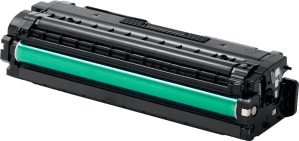
Check the exact cartridge codes before approving a printer. Confirm whether the device uses a separate drum, waste container or maintenance kit, and ask how quickly replacements can be supplied.
For several offices, standardising a small number of models can simplify user training and stock management. However, do not force one model into departments with different workloads.
Clarify installation, driver setup, network configuration and fault reporting. Written support terms make responsibilities clearer when a printer stops working during a busy period.
Measure the printer footprint and leave room to open trays, replace cartridges and access cables. Check the display, buttons and paper-loading process for the staff who will use the device daily.
Place the printer where noise, heat and foot traffic will not interfere with work. A technically suitable model may still be inconvenient if employees must cross the office for every document.
It depends on volume and document type. Laser models often suit regular text printing, while inkjet devices may fit offices with lighter, flexible colour needs. Compare actual usage.
There is no universal number. Consider queue volume, network capacity, print speed, paper replenishment and how far employees must walk to collect documents.
No. Assign colour where it supports a genuine business requirement, and use monochrome devices for routine paperwork when that reduces supply complexity.
They can be, provided access controls, stored-job settings, scan destinations and administrator credentials are configured appropriately for your organisation.
Share the model under consideration, monthly pages, document types, required features, connection method, location and preferred support arrangement.
The best HP office printer balances dependable output, practical features and manageable ownership costs. Contact Express Computers with your workload, document mix and required functions to discuss a suitable office printing setup.